 iTVD
iTVD
How to Download Threads Videos on PC or Mac
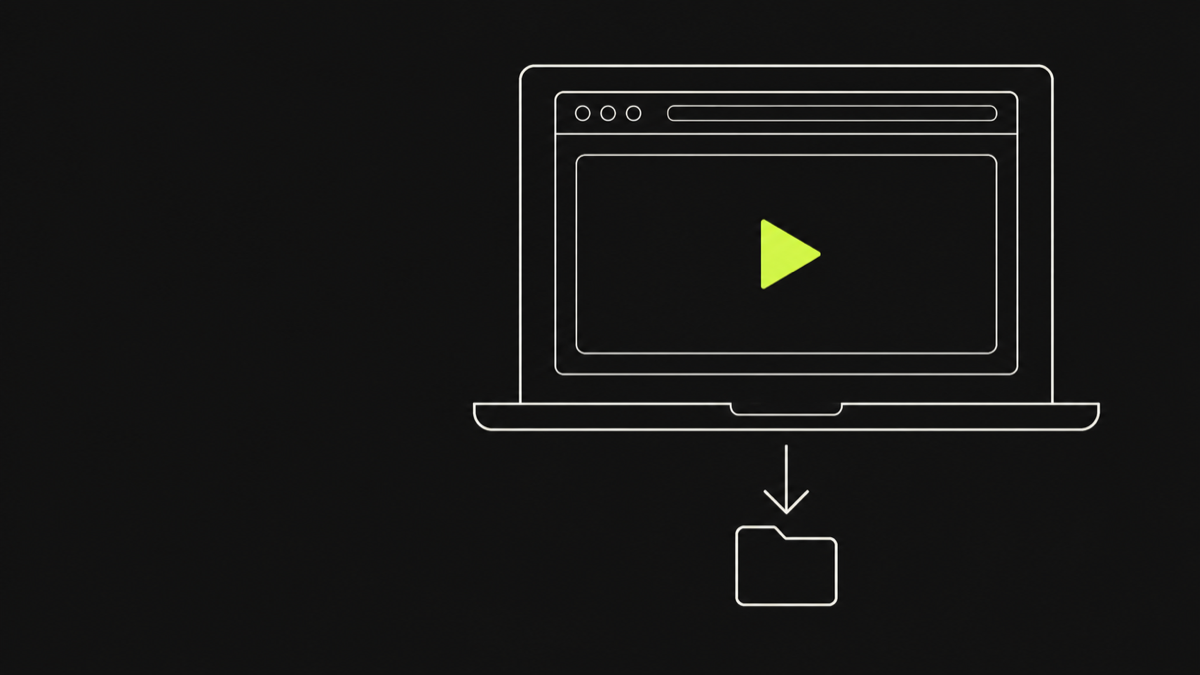
If you spend most of your time on a computer, downloading Threads videos there is often the most convenient option. Desktop browsers handle downloads predictably: one click saves a file, and you know exactly where it went. The Threads app has no save button for other people's videos, but the downloader on this page works on Windows and macOS with nothing to install.
The flow is identical on both platforms. Copy a public post link, paste it here, preview the video, and download the MP4. On a PC the file lands in your Downloads folder, and on a Mac it lands in the same place, ready to play in the built-in player.
Everything runs in your normal browser, uses only public posts, saves videos as MP4 at the quality Threads serves, and never asks you to log in to anything. If you are comfortable using a browser, you already know everything this guide teaches.
Both operating systems also handle the files identically after the download: the MP4 is yours to move, rename, or edit. If you use several computers, the same link works on each one, and the saved files play without conversion on either platform. That consistency is why desktop remains the favourite place for many people to keep Threads clips.
Getting the link on a desktop browser
Open the Threads website at threads.net in your browser and find the video you want. Click the share icon on the post, then choose Copy link from the menu. The post URL is now on your clipboard.
The link looks like this: https://www.threads.net/@username/post/POST_ID. That trailing post ID is what the downloader matches against, so the link must come from the post itself rather than from a reply, a repost, or a profile page.
If the Threads share menu is not visible, you can also open the post in its own tab and copy the address from the browser's URL bar. The downloader accepts that address as long as it follows the post URL format.
Copying from a desktop browser is exactly as reliable as copying from the phone app. The website and the app share the same post URLs, so the link you copy on your computer works in the same downloader you use on your phone.
Some browsers offer an option to ask where to save each download, which is worth enabling if you download often. When that setting is on, a small dialog appears before the save and lets you pick the folder and even rename the file in one step. Otherwise the file goes to the default Downloads folder, which is fine for occasional use. Edge, Chrome, and Firefox all have this option in their settings under the downloads section, and Safari shows a similar choice. Using it removes the need to move files after the download finishes.
Resolving and previewing on a big screen
Paste the link into the field on this page and press the download button. The downloader reads the public post and lists the media attached to it, showing each video with its own preview.
On a desktop the preview is larger and clearer than on a phone, which makes it easy to confirm you have the right clip. Images attached to the same post appear as separate cards, so a mixed post shows its photos and video side by side.
If no media is reported, the post is text-only, private, follower-only, or deleted. Public posts that play a video always display their file here for download.
The preview is a real look at the file, not a static icon, so you can check the content before committing to a download. On a large monitor, reading captions and identifying the right clip takes seconds.
The preview step is especially useful on a desktop because you can check details such as duration and the presence of a caption before committing. If a post contains both photos and a video, the cards make the mix obvious, and you can download the video while leaving the photos behind. For a carousel, the full item list appears on one screen, so choosing the right files takes seconds rather than taps. Large monitors make it easy to compare items side by side, which is something a small phone screen cannot offer. That visibility turns previewing into a genuine quality check rather than a formality. Seeing is believing, and previews make that easy.
Where files save on Windows and macOS
On Windows, the MP4 downloads into the Downloads folder that your browser uses, usually C:\Users\YourName\Downloads. You can reach it from File Explorer, or by pressing Windows and typing the file name.
On macOS, the file lands in the Downloads folder in Finder, typically ~/Downloads. Clicking the file opens it in the built-in QuickTime player or your default media app.
Both platforms show a download notification as the file saves, and the file name matches the media name from the downloader. If you prefer another location, most browsers let you change the download folder in their settings, and you can always move the file after it saves.
Keeping a downloads folder tidy is easy because every file arrives named after its media. If you download several clips from one creator, sorting the folder by date shows exactly what you grabbed and when.
Browsers also remember where you last saved a file, which speeds up repeat downloads: the next save starts in the same folder you chose previously. If you keep a dedicated folder for Threads media, this behaviour lets you accumulate a library without touching the mouse between downloads. To change the default location permanently, edit the browser's download settings once and every future save follows it. On Windows, the Downloads folder can also be redirected to another drive if you want media kept off your system disk. Either way, the file lands somewhere predictable, and that predictability is what makes desktop downloads feel effortless. Your files land where you expect, every time.
Using downloaded videos in projects
A desktop download gives you the same flexibility as any local file. The MP4 can be dragged into editing software, added to a slideshow, uploaded to another platform, or attached to an email without conversion.
Because the downloader never re-encodes, the file plays smoothly in the standard players and keeps the resolution Threads serves for the post. For most posts that means up to 1080p when the creator uploaded a high-quality source.
Keep the creator's rights in mind when you reuse the video. Download media you own or have permission to save, and avoid republishing other people's content in ways they have not agreed to.
Desktop editing tools accept MP4 files directly, so there is no transcoding step before you start working. Whether you are cutting clips for a project or just archiving videos for reference, the file is ready to use the moment the download finishes.
One practical note is that the downloaded file is a plain MP4, which every editing suite imports directly. Whether you are building a montage, a presentation, or a personal archive, there is no format conversion step before the file becomes usable. That directness is a real advantage over tools that return archives or proprietary containers. If you later upload the clip somewhere, the MP4 container is accepted by virtually every platform, so the download is immediately portable. For reference material, keeping the original file name helps you trace which post a clip came from. Organizing a folder of downloaded clips by creator or date keeps a growing library easy to navigate.
Copy the post link
Open the video on threads.net, tap the share icon, and choose Copy link. The post must be public.
Open the downloader
Go to this page in your usual desktop browser, Chrome, Edge, Safari, or Firefox.
Paste the link
Click the input field, paste the copied Threads link, then press the download button.
Preview the video
Check the preview shows the clip you want before you save anything.
Download the MP4
Click the download button and the video saves to your standard downloads folder.
Play it anywhere
Open the file in your media player, move it to a project folder, or upload it somewhere.
Frequently asked questions
Where does the Threads video download to on a PC?
It saves into your browser's Downloads folder, usually C:\Users\YourName\Downloads. Open File Explorer to find it after the download completes. The browser shows a download bar when the save finishes, so the location is never a mystery. File Explorer shows the file right away, named after the media itself. The file name alone makes it easy to identify. It is always in the folder the browser uses.
Where does it save on a Mac?
It lands in the Downloads folder in Finder, typically ~/Downloads. Click it to play in QuickTime or move it anywhere you like. Finder also offers a Recents section, which is the quickest way to reach the file right after saving. Spotlight search by the file name finds it the moment the save ends. A quick Finder search finds it in seconds.
Do I need an app or extension on desktop?
No. The downloader is a normal web page that works in Chrome, Edge, Safari, Firefox, or any modern browser. Nothing is installed. The downloader has no install footprint, which also means nothing to update or remove later. The page runs in any browser, so platform quirks never come into play. Nothing installs and nothing needs removing later. The page itself is the whole tool.
Can I download videos from private Threads accounts on a computer?
No. Only public posts can be read from any device. Private and follower-only content is never accessible, and no login is requested. The same public-only boundary applies on every operating system and every browser. The rule is device-independent: public posts only, always and everywhere. The public-only rule is identical on every platform. No login changes that, on any machine. Full stop.
What quality will the video be on desktop?
You receive the MP4 at the resolution Threads serves for that post, with no re-encoding. Most video posts are available up to 1080p when the upload allows it. Desktop players render the same file the browser saved, so what you see is exactly what was served. Desktop players show the exact file that was served, with no conversion. The monitor shows the file exactly as it was saved.
The download did not start. What should I check?
Confirm the post is public and still exists, then resolve it again if the signed link expired after 15 minutes. Also check that your browser did not block the download. Resolving again also refreshes the preview, so a second attempt works even after a long pause. Allow downloads for the site in your browser and retry the resolve. Allow downloads for the site, then resolve again.
Can I download Threads photos on a PC or Mac?
Yes. Every image in a public post saves as a JPEG into the same Downloads folder. On a Mac it opens in Preview, and on Windows in the built-in photo viewer. The JPEGs follow the same download folder and open directly in the system viewers. Images arrive in the same folder and open in the standard viewers. Images follow the same simple download behavior.
Will the video play without special software?
Yes. MP4 files play in the players that ship with Windows and macOS, plus in every major third-party media app, with no codec packs required. MP4 is the most widely supported video container, so compatibility is rarely a concern. Built-in players on both systems handle the MP4 with no configuration. Compatibility is built into the MP4 container itself. It just plays, everywhere.
Also in Español · Deutsch · Français · Português · हिन्दी · Bahasa Indonesia · 日本語 · 한국어 · 简体中文 · العربية